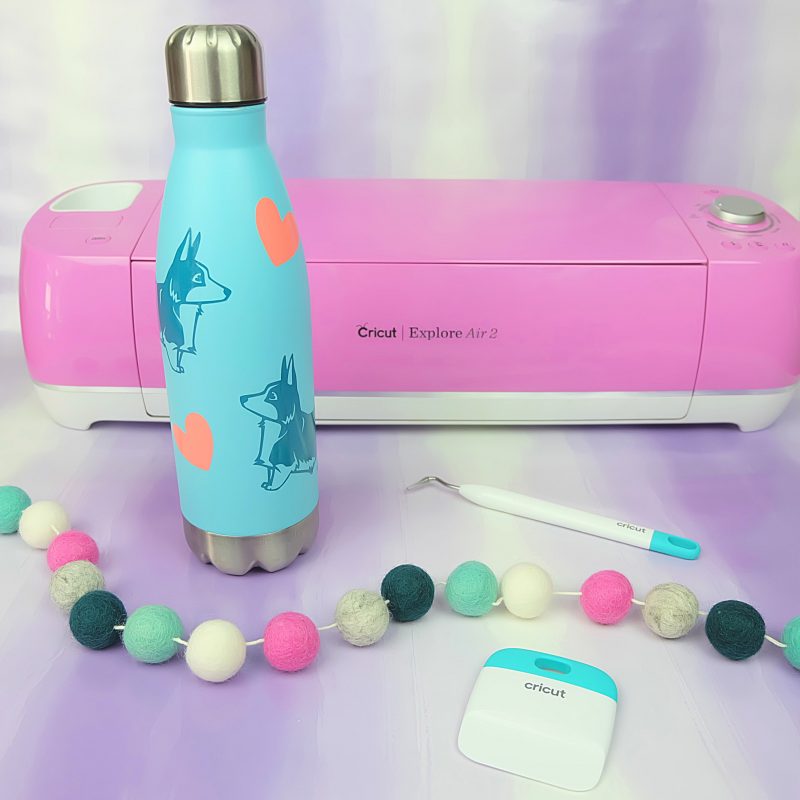


How to Calibrate Your Cricut for Perfect Cuts Every Time
This post and the photos within it may contain Amazon or other affiliate links. If you purchase something through the link, I may receive a small commission at no extra charge to you.
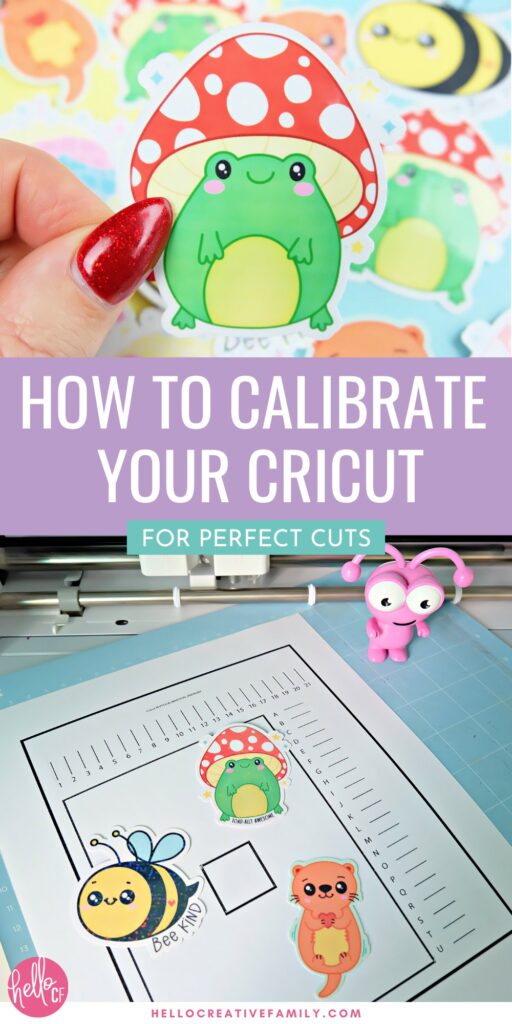
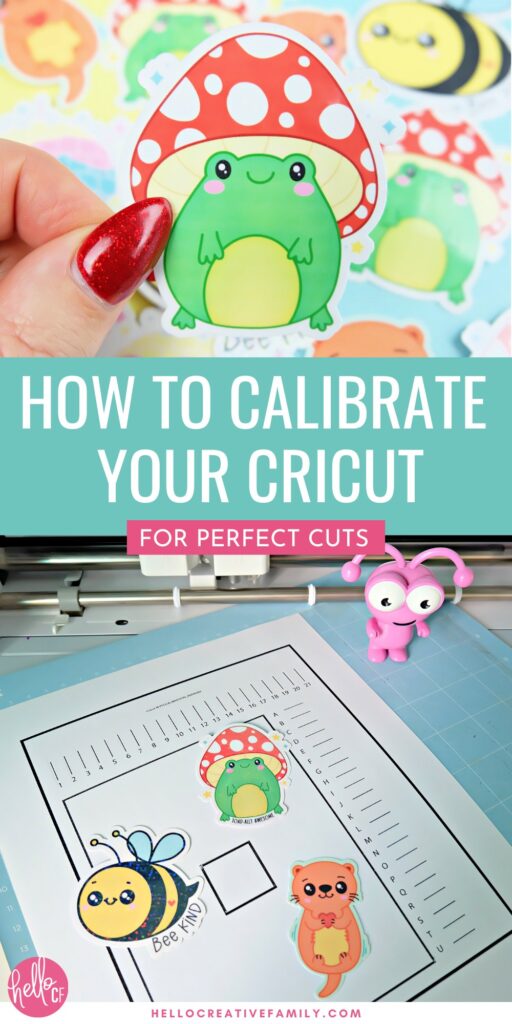
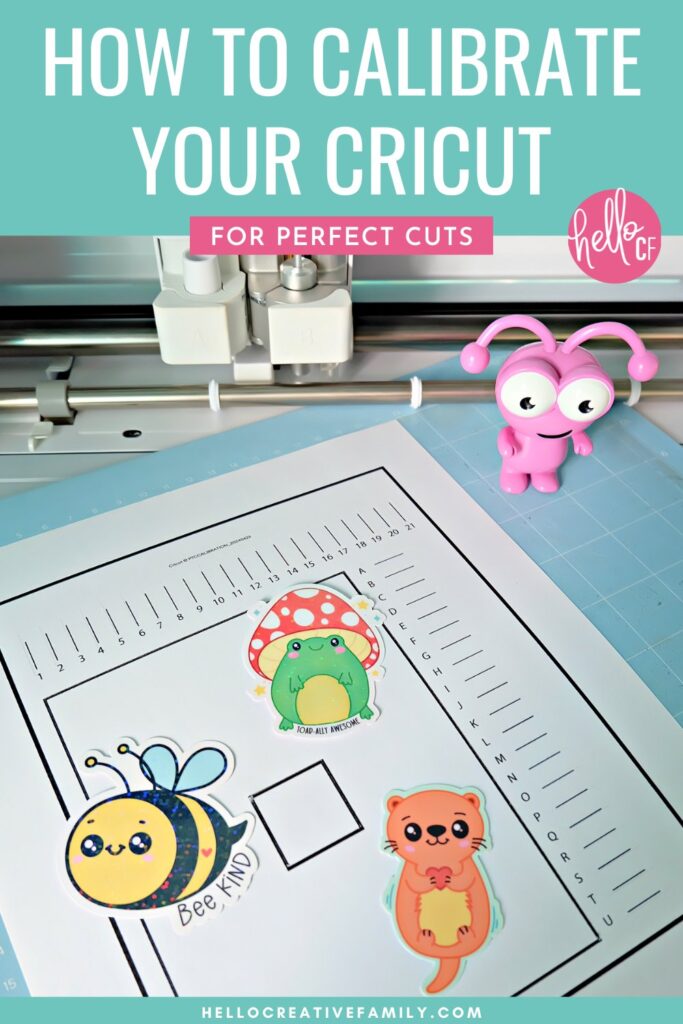
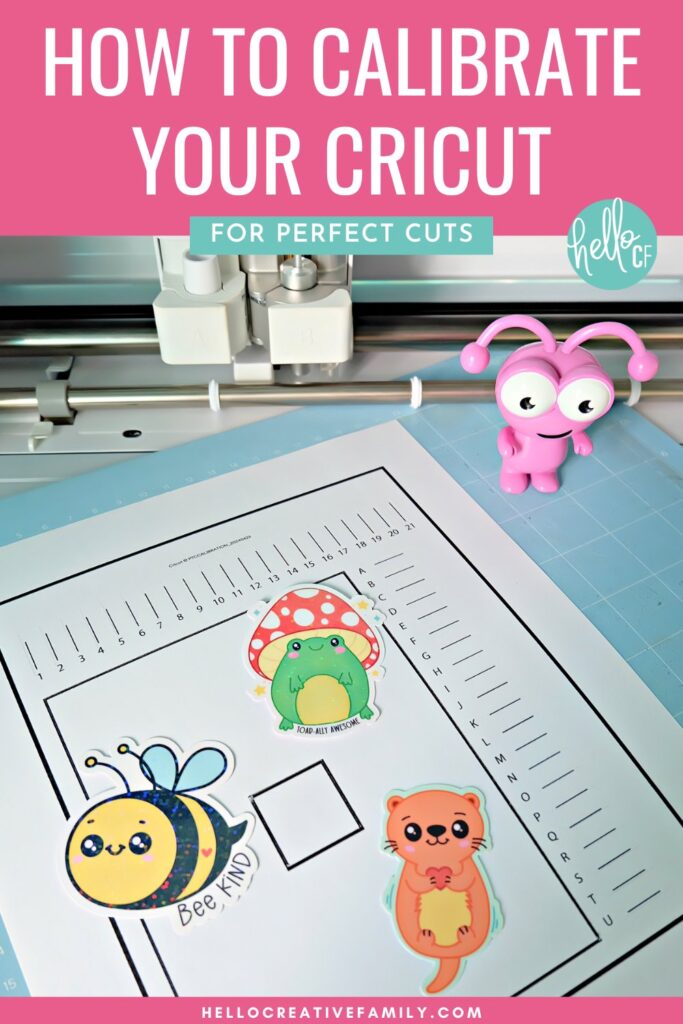
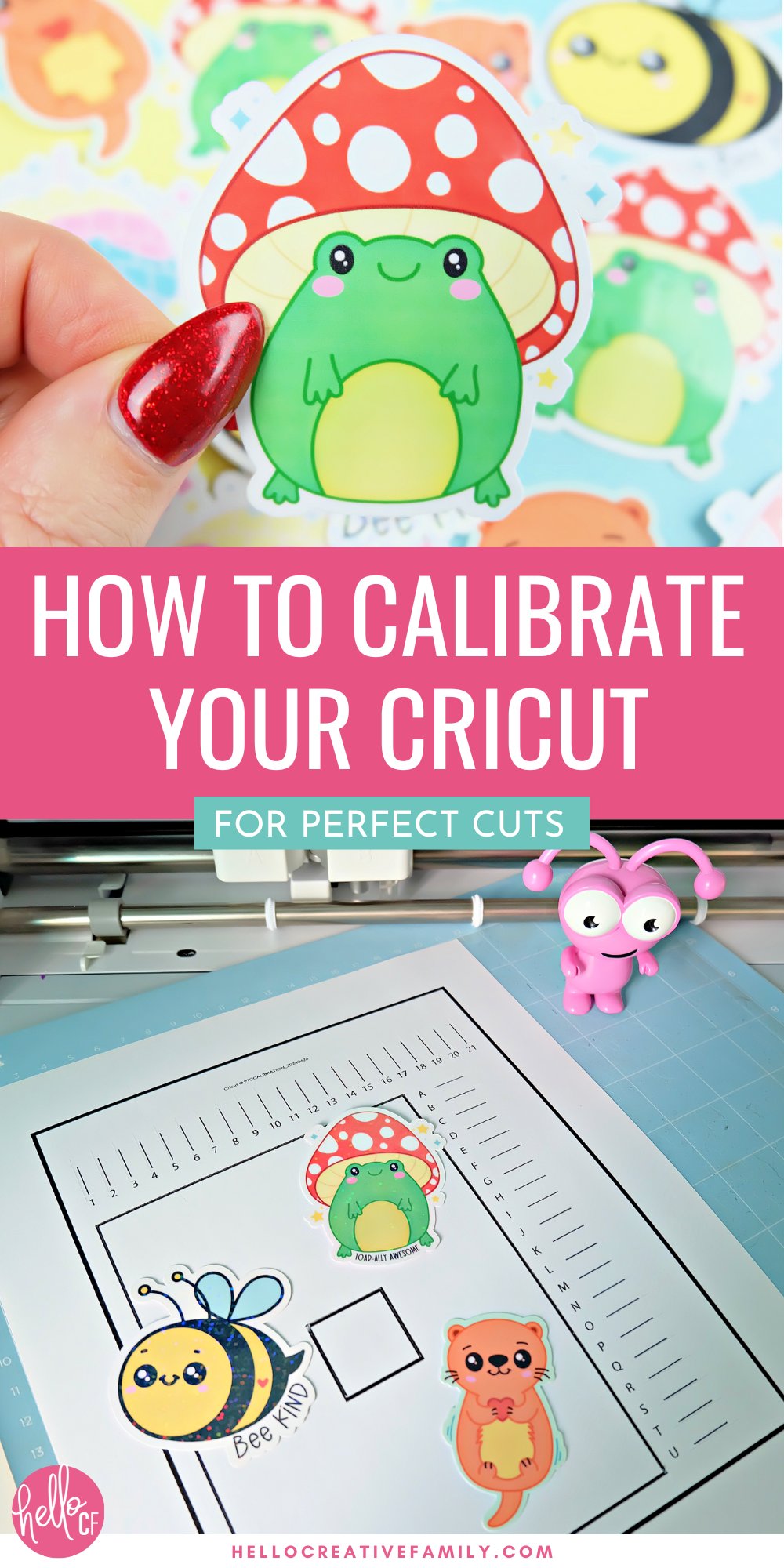
Cricut cutting outside the lines? Learn how to calibrate your Cricut for precise cuts every time! This step-by-step guide covers Cricut Print Then Cut, Cricut Knife Blade & Cricut Rotary Blade calibration so you can say goodbye to Cricut alignment issues.
Hi Crafty Friends!
Cricut crafting is such a fun way to express yourself creatively, make something beautiful, and relieve a bit of stress. But one sure way to kill a great crafting mood is when your Cricut doesn’t cut properly!
If you’ve ever experienced Cricut alignment issues, you know exactly what I mean.
In this post, we’re going to make sure you never have to deal with the frustration of your Cricut cutting outside the lines again.
We’ll cover everything you need to know about calibrating your Cricut cutting machine so you can get perfect cuts every time!
Why Calibration is Essential for Cricut Accuracy
If you’ve ever experienced your Cricut machine cutting slightly off from the printed design, you’re not alone! Whether you’re using Print Then Cut, the Cricut Knife Blade, or the Cricut Rotary Blade, calibration is key to ensuring precision. Proper calibration helps prevent alignment issues, making sure your Cricut delivers flawless cuts every time.
In this guide, we’ll walk you through:
- How to calibrate your Cricut machine step by step
- Troubleshooting common calibration issues
- Best practices to maintain perfect alignment
When Should You Calibrate Your Cricut?
Your Cricut may need calibration if:
- Your Print Then Cut projects are cutting outside the lines.
- The Knife Blade or Rotary Blade is misaligned and not cutting cleanly.
- You recently moved your machine, updated Cricut Design Space, or switched materials.
- You purchased a new Cricut machine (including the Cricut Maker 4, Cricut Explore Air 4, Cricut Venture, or Cricut Joy Xtra).
What You Need Before Calibration
Before you start, make sure you have:
- Your Cricut Joy, Cricut Joy Xtra, Cricut Explore Air 2, Cricut Explore Air 3, Cricut Explore 4, Cricut Maker, Cricut Maker 3, Cricut Maker 4 or Cricut Venture.
- Cricut Design Space (on desktop or mobile).
- A printer (for Print Then Cut calibration).
- A LightGrip cutting mat.
- Plain white paper for printing the calibration sheet.
How to Calibrate Your Cricut Step by Step
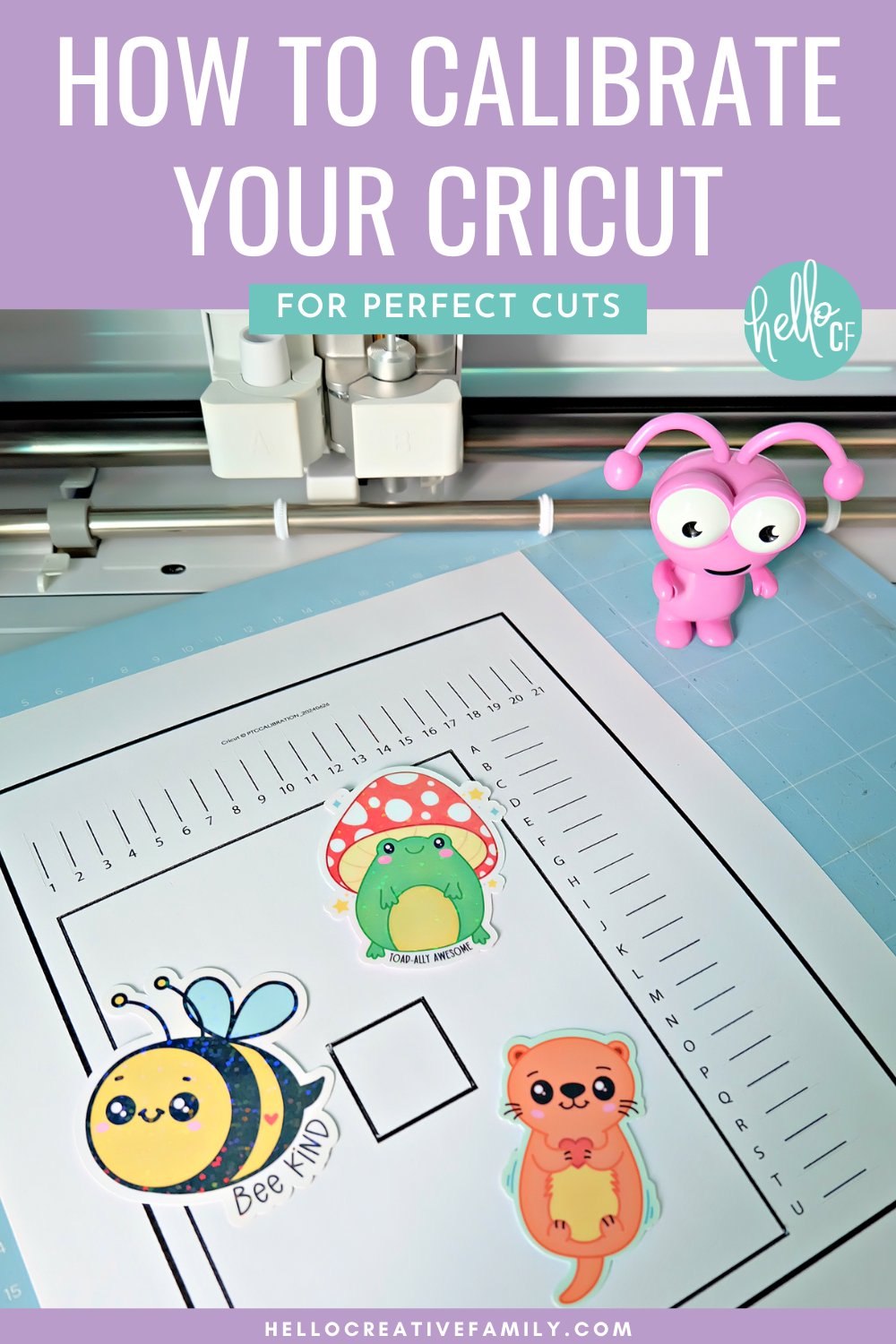
Calibrating your Cricut cutting machine is an easy process that should take approximately 5 minutes to do. Follow the below steps to make calibration a breeze.
1. Access Calibration Settings in Cricut Design Space
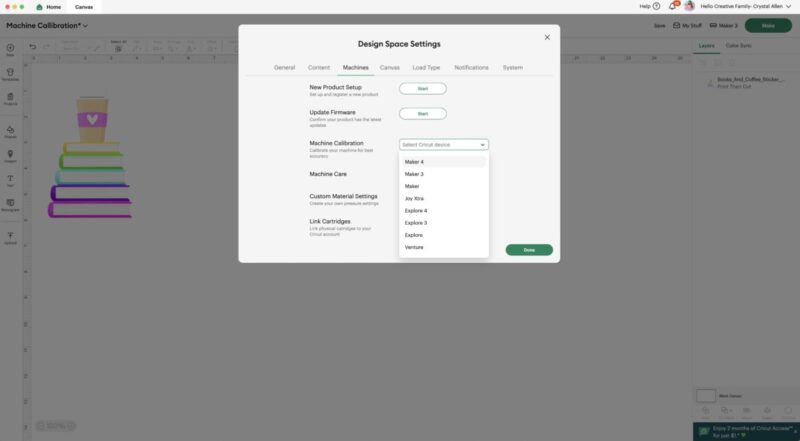
- Open Cricut Design Space.
- Click on your profile picture in the top-right corner and go to Settings.
- Select Machine Settings, then find Machine Calibration.
- Choose your Cricut machine type from the drop-down menu.
2. Choose the Right Calibration Type
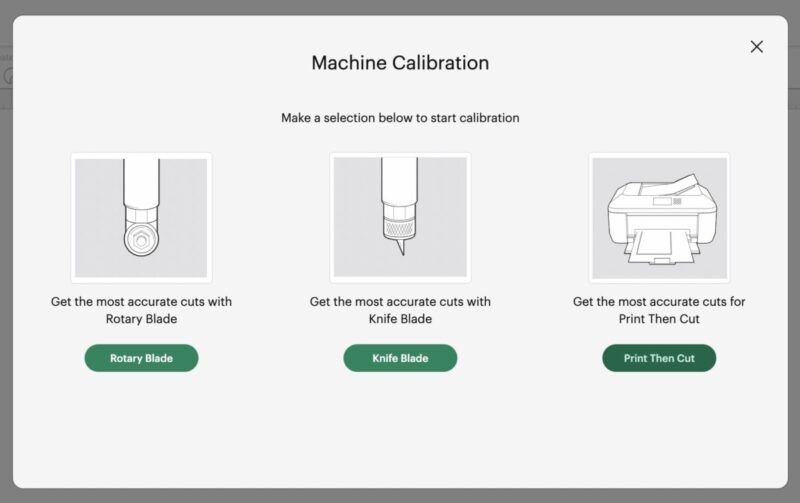
Depending on the tool you are using, select:
- Print Then Cut Calibration – For precise alignment when cutting printed images.
- Knife Blade Calibration – For deep cuts using the Knife Blade.
- Rotary Blade Calibration – For cutting fabric and delicate materials.
3. Run the Calibration Process
The process of completing a calibration is slightly different depending on if you are calibrating for Print Then Cut or the Cricut Knife Blade or Rotary Blade.
Cricut Print Then Cut Calibration
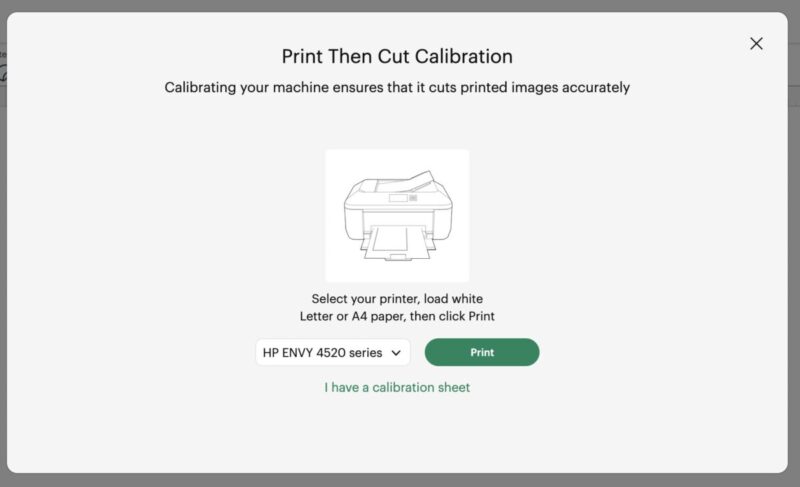
- Cricut Design Space will prompt you to print a calibration sheet on your home printer. It prints out in black ink.
- Place the printed sheet in the upper-left corner of a LightGrip mat and load it into your Cricut.
- Your Cricut will perform a series of test cuts, cutting vertical lines, horizontal lines and boxes and ask you questions about alignment.
- Follow the on-screen instructions to select the best cuts for adjustment.
- DO NOT unload the mat until Cricut Design Space confirms calibration is complete!
Cricut Knife Blade and Cricut Rotary Blade Calibration
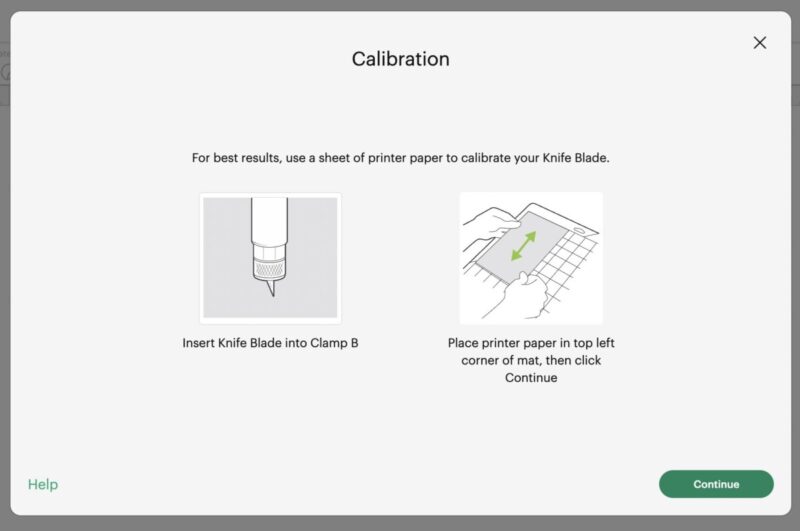
- Insert your Cricut Knife Blade or Cricut Rotary Blade into Clamp B of your Cricut Maker.
- Place a blank piece of printer paper in the upper-left corner of a LightGrip mat, load it into your Cricut, and press the play/go button.
- Your Cricut will perform a series of cuts on the paper and then ask you to select which group of lines overlaps the most.
- Once you make your selection, your calibration is complete.
4. Confirming Successful Calibration
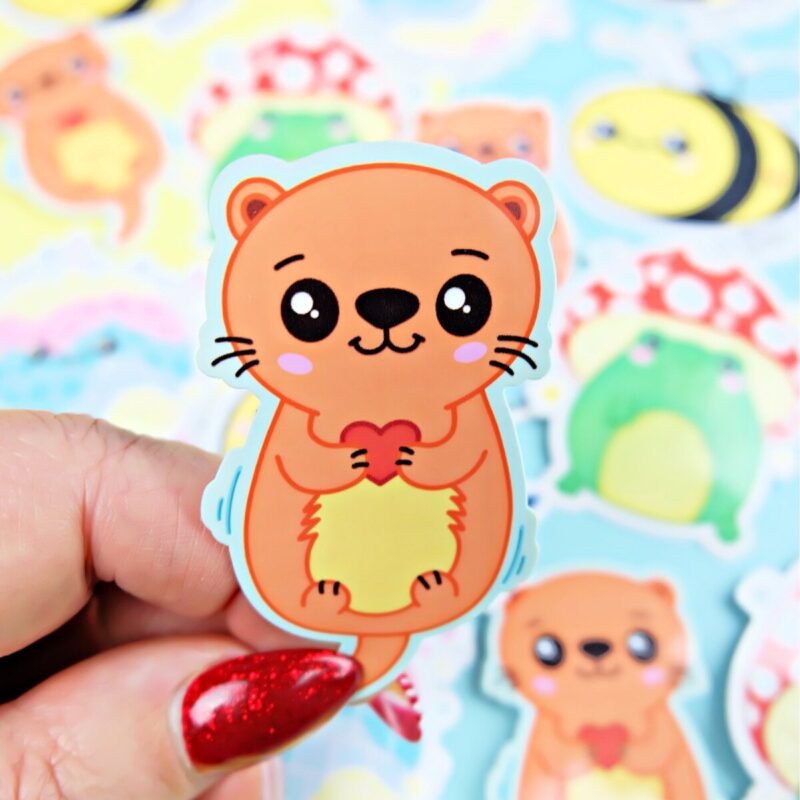
Once calibration is complete, test a small Print Then Cut project, Knife Blade project or Rotary Blade project to ensure accuracy. If cuts are still misaligned, repeat the calibration process until you see improvement.
Cricut Calibration Video
Watch this video of me running a Cricut Print Then Cut Calibration on my Cricut Maker 3.
Troubleshooting Common Calibration Errors
If you’re still experiencing alignment issues, here’s how to fix them:
Cricut is cutting off-center → Try reprinting the calibration sheet with a clean, high-quality print.
Cricut won’t recognize the calibration sheet → Ensure your printer is set to 100% scale (not “fit to page”). Check for good lighting if using Print Then Cut.
Cuts aren’t improving after multiple calibrations → Restart your Cricut, update Design Space, and check for firmware updates.
Tried all of the above and still can’t get a proper cut? Contact Cricut Member Care. Information on hours of operation and phone numbers can be found below.
What Can You Make With Cricut Print Then Cut?
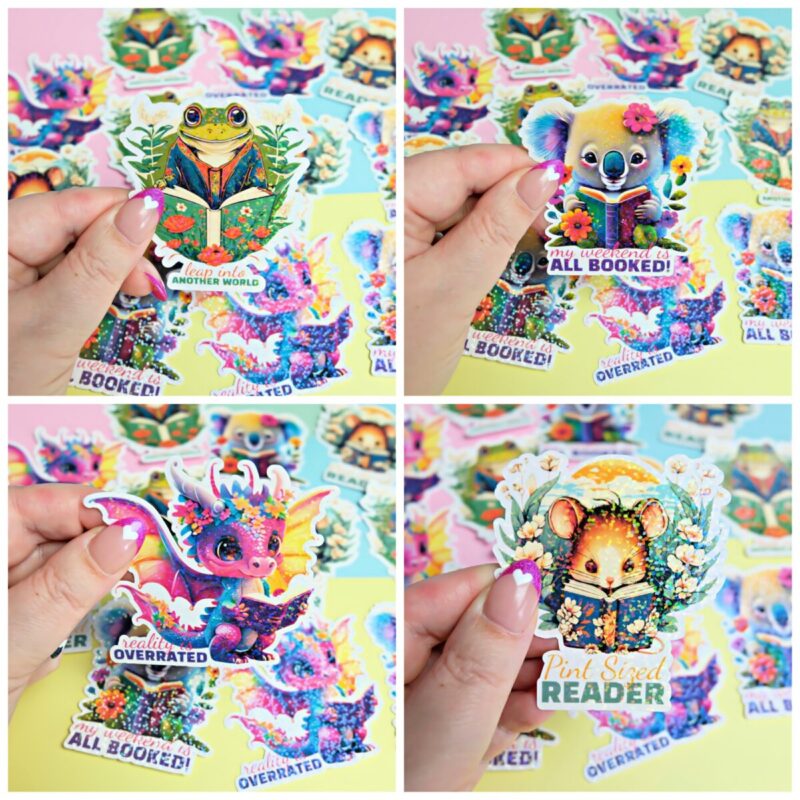
Cricut’s Print Then Cut feature is perfect for creating:
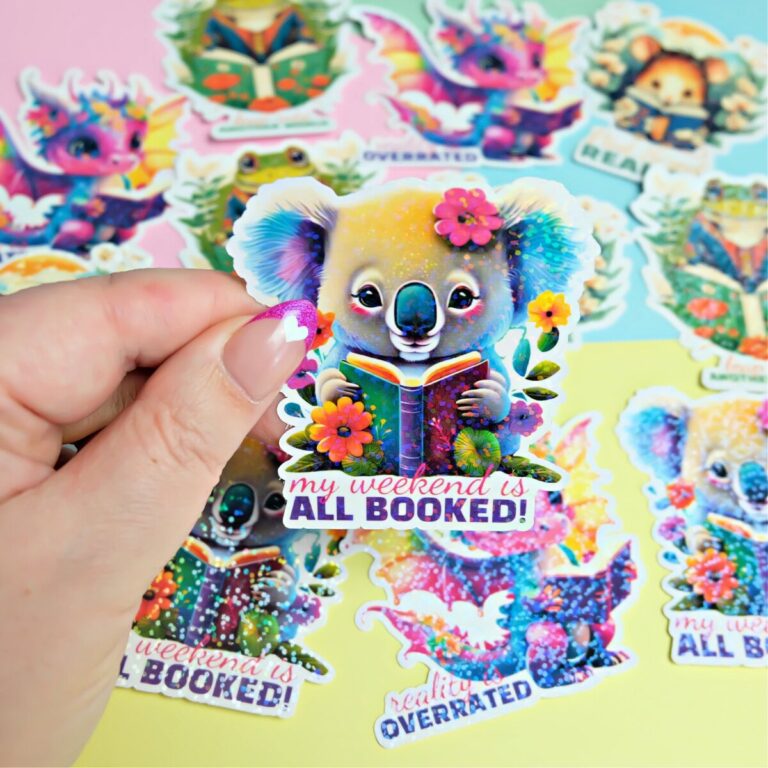
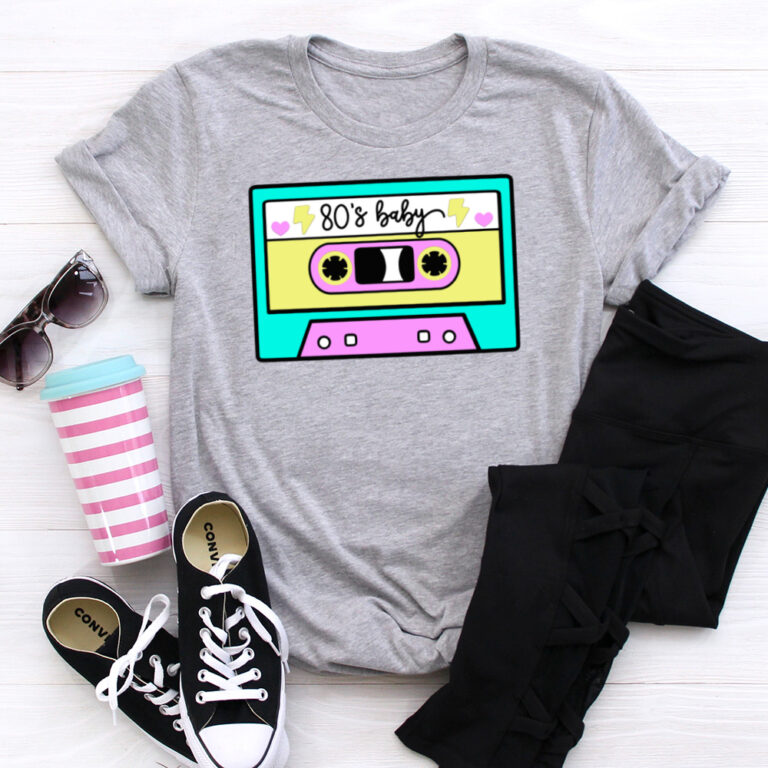
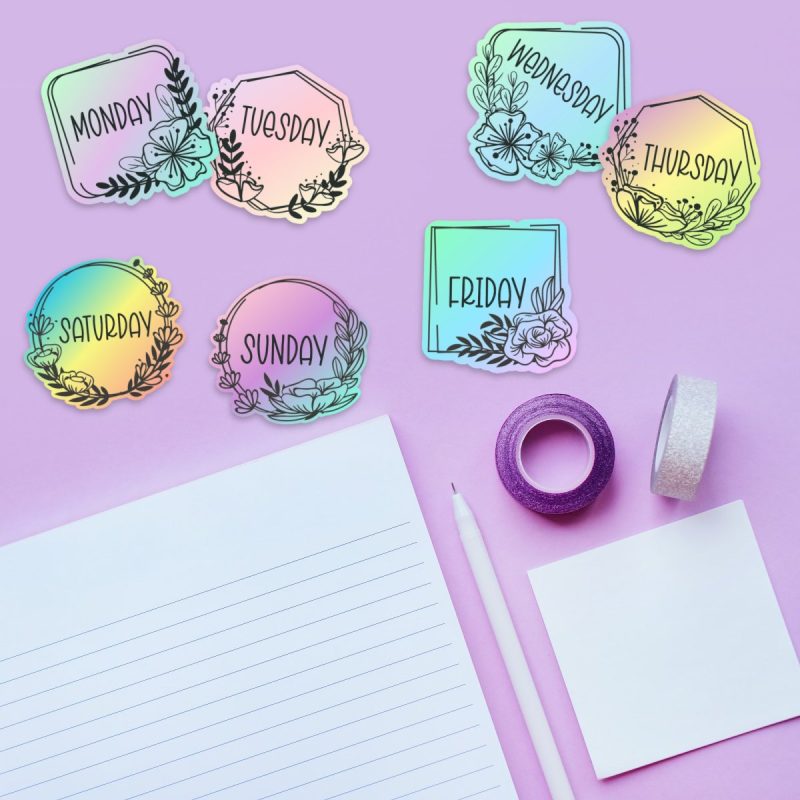
- Custom stickers – Waterproof, matte, glossy, or holographic stickers for planners, scrapbooks, or small businesses. Check out this sticker idea using AI art!
- Gift tags and labels – Personalize gift wrapping, pantry labels, or product packaging.
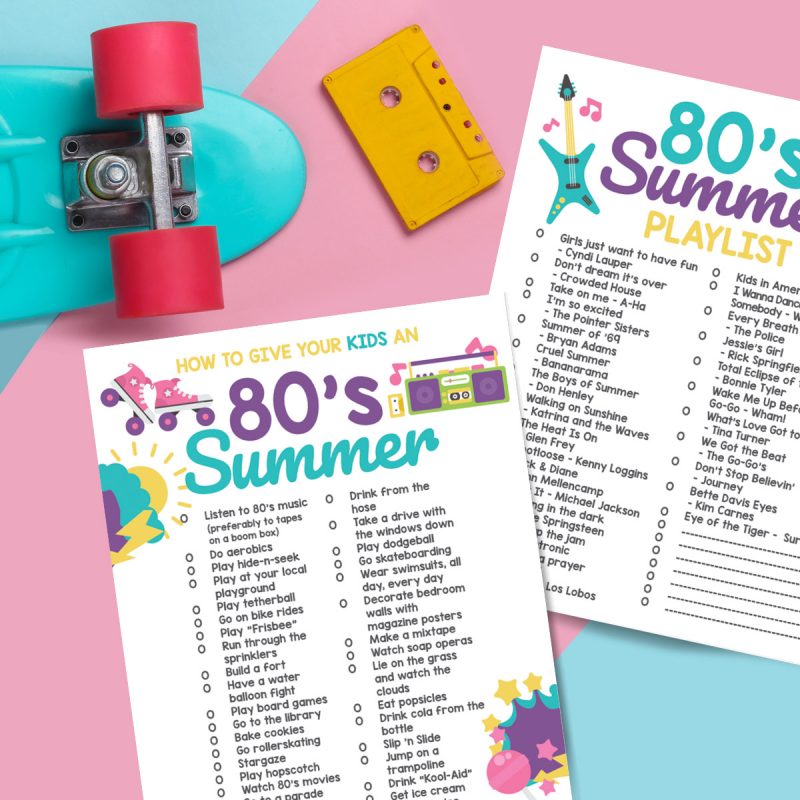
- Printable die-cut embellishments – Perfect for card making, scrapbook pages, and DIY decorations.
- Temporary tattoos – Fun for kids’ parties, events, or just for fun.
- Magnets – Create custom fridge magnets with your favorite designs.
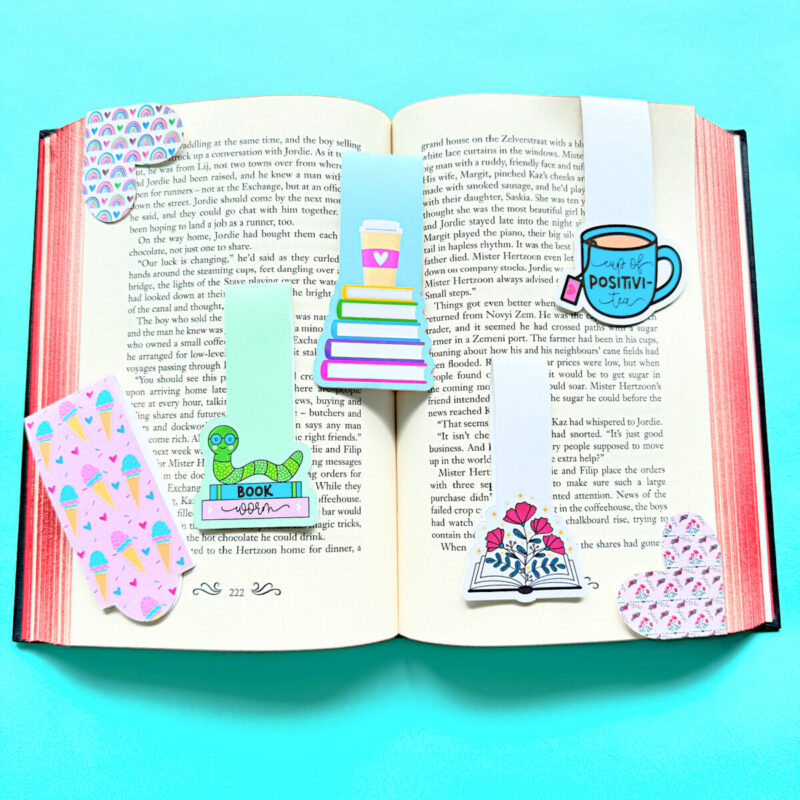
- Magnetic Bookmarks – The perfect handmade gift for book lovers! Learn to make Kawaii Sushi Magnetic Bookmarks here!
What Can You Make With the Cricut Knife Blade?
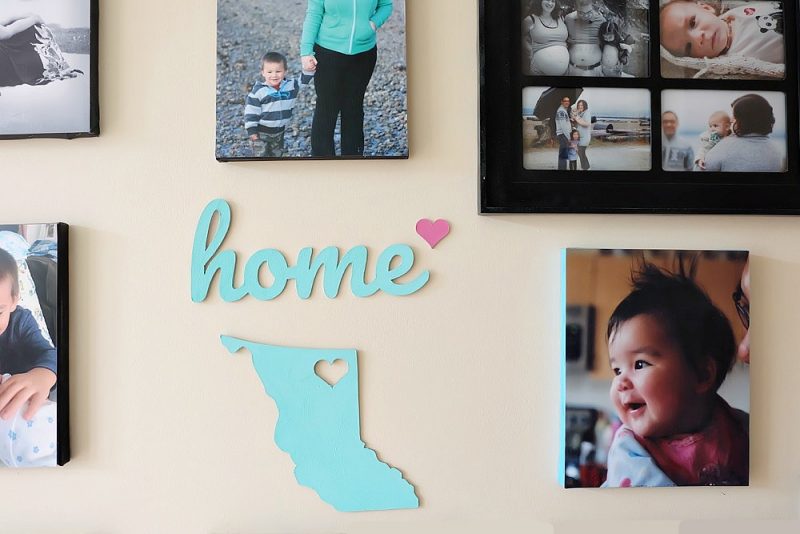
The Cricut Knife Blade is designed for cutting thicker materials such as:
- Wood veneer projects – Create personalized keychains, coasters, and home decor.
- Chipboard designs – DIY puzzles, cake toppers, and layered 3D projects.
- Leather crafts – Handmade wallets, earrings, and luggage tags.
- Foam board creations – Custom cosplay pieces, architectural models, and DIY stamps.
- Balsa wood projects – Make model airplanes, jewelry, or custom wall art. Learn how to make the Home Sign pictured above from Balsawood or chipboard.
What Can You Make With the Cricut Rotary Blade?
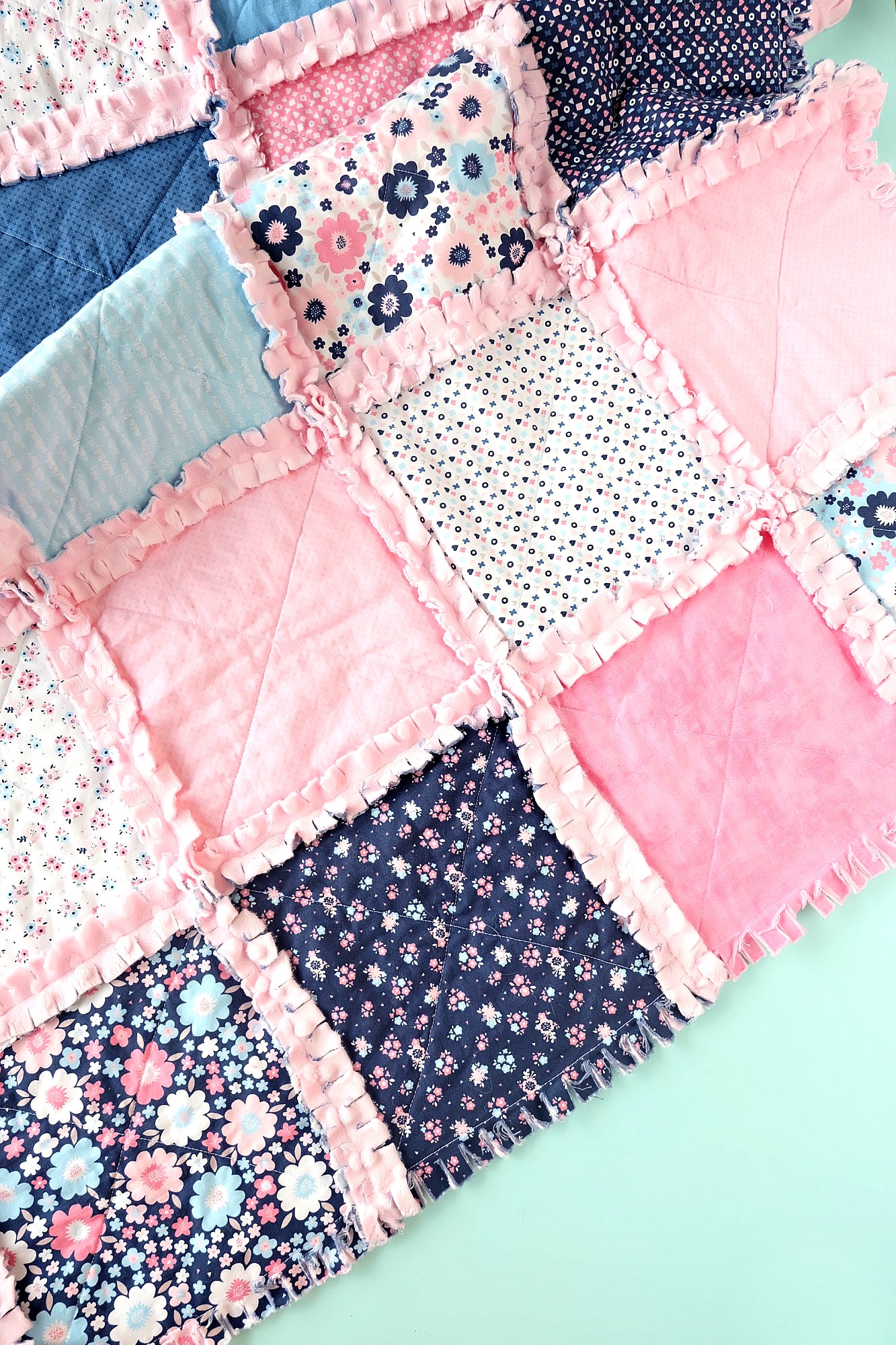
The Cricut Rotary Blade is designed for cutting fabric with precision. It’s ideal for:
- Quilting projects – Perfectly cut fabric squares, appliqué pieces, and patchwork designs. Try this Rag Quilt Project!
- Felt crafts – Make custom felt flowers, hair accessories, and garlands. Give this Felt Koala Stocking a try!
- Leather and faux leather accessories – DIY wallets, keychains, bags, and jewelry. Learn how to make a heart keychain that mom will love!
- Sewing patterns – Cut out pattern pieces without the need for scissors.
- Fabric banners and home decor – Create custom bunting, pillow appliqués, and seasonal decorations. This Love Lives Here banner is so much fun!
Keeping Your Cricut Calibrated for Perfect Cuts
- Calibrate your Cricut regularly, especially after moving your machine, updating software, or switching materials.
- Keep sensors clean to prevent misalignment issues.
- Use high-quality prints for Print Then Cut projects.
Want More Print Then Cut Projects?
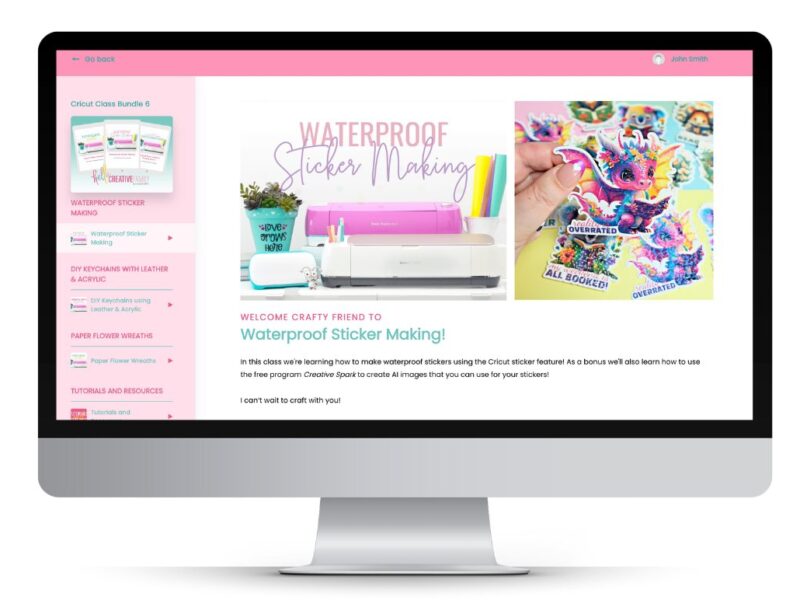
Now that you know how to calibrate your Cricut, it’s time to master Print Then Cut!
Check out these Cricut Craft Club Class Replays:
- Waterproof Sticker Making
- DIY Waterproof Stickers
- Cricut Valentine’s Day Cards
- Print Then Cut Deep Dive
Each replay includes:
- A full-length, step-by-step video tutorial
- A detailed supply list with links to where to purchase each material
- Exclusive SVG files used in the class
- Lifetime access so you can rewatch anytime
Ready to Gain Your Cricut Confidence?
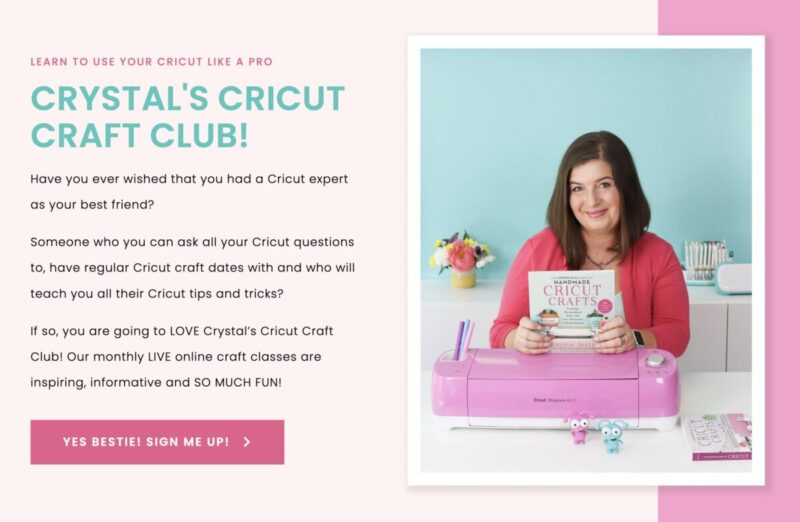
Want to have a Cricut BFF to answer all your questions? Join Cricut Craft Club!
When you sign up, you’ll get:
- Live monthly Zoom craft classes with expert guidance
- Access to class replays so you can craft on your schedule
- Free SVG files each month that are perfect for making projects for that month’s theme
- A private crafting community for support and inspiration
- The confidence to tackle any Cricut project with ease
Still Having Callibration Issues? Contact Cricut Member Care!
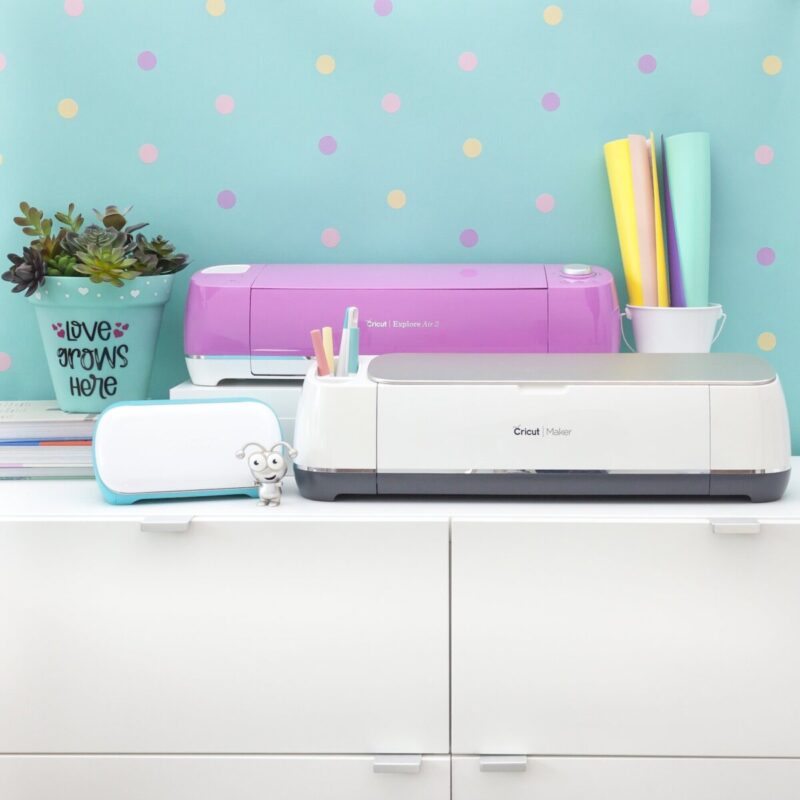
If you’ve tried everything and still aren’t getting perfect cuts, Cricut has a phenomenal Member Care team that can assist you over the phone.
Cricut Customer Support Contact Information:
Phone numbers and hours of operation for each Cricut Member Care region can be found below.
Americas Cricut Member Care:
- USA: 877-727-4288 (Mon-Fri: 9:00 AM – 8:00 PM EDT, Sat: 10:00 AM – 7:00 PM EDT)
- Canada: 877-727-4288 (Mon-Fri: 9:00 AM – 8:00 PM EDT, Sat: 10:00 AM – 7:00 PM EDT)
- Brazil: 0800-591-0962 (Mon-Fri: 9:00 AM – 6:00 PM BRT)
- Chile (Spanish): 0800-914-251 (Mon-Fri: 10:00 AM – 9:00 PM CLT)
- Colombia (Spanish): 18005198518 (Mon-Fri: 9:00 AM – 6:00 PM COT)
- Mexico (Spanish): 800-266-0135 (Mon-Fri: 8:00 AM – 7:00 PM CST)
- Peru (Spanish): 5180074709 (Mon-Fri: 9:00 AM – 6:00 PM PET)
Asia Pacific Cricut Member Care:
- Australia: 1800-953-076 (Mon-Fri: 9:00 AM – 10:00 PM AEST)
- Hong Kong: 800969409 (Mon-Fri: 9:00 AM – 6:00 PM HKT)
- India: 0008000501639 (Mon-Fri: 9:00 AM – 6:00 PM IST)
- Japan: 006633868130 (Mon-Fri: 10:00 AM – 5:00 PM JST)
- Malaysia: 1800819020 (Mon-Fri: 9:00 AM – 6:00 PM MYT)
- New Zealand: 0800-463-844 (Mon-Fri: 9:00 AM – 6:00 PM NZST)
- Philippines: Globe: 180089928821 / Smart: 180011180021 (Mon-Fri: 9:00 AM – 6:00 PM PST)
- Singapore: 800-852-6755 (Mon-Fri: 9:00 AM – 6:00 PM SGT)
- South Korea: 808800514 (Mon-Fri: 9:00 AM – 6:00 PM KST)
Africa & Middle East Cricut Member Care:
- Egypt: 08000060256 (Mon-Fri: 10:00 AM – 7:00 PM EEST)
- Saudi Arabia: 08008501028 (Mon-Fri: 9:00 AM – 6:00 PM AST)
- South Africa: 0800-012-620 (Mon-Fri: 10:00 AM – 7:00 PM SAST)
Europe Cricut Member Care:
- Austria: 800100337 (Mon-Fri: 9:00 AM – 6:00 PM CEST)
- Belgium: 0800-11-736 (Mon-Fri: 9:00 AM – 6:00 PM CEST)
- Denmark: 80705770 (Mon-Fri: 10:00 AM – 7:00 PM CEST)
- Finland: 0800552072 (Mon-Fri: 9:00 AM – 6:00 PM EEST)
- France: 0805-11-86-96 (Mon-Fri: 9:00 AM – 6:00 PM CEST)
- Germany: 0800-000-8389 (Mon-Fri: 9:00 AM – 6:00 PM CEST)
- Iceland: 8004126 (Mon-Fri: 8:00 AM – 5:00 PM GMT)
- Ireland: 1800849032 (Mon-Fri: 9:00 AM – 6:00 PM IST)
- Italy: 800-098-380 (Mon-Fri: 9:00 AM – 6:00 PM CEST)
- Netherlands: 0800-298-8888 (Mon-Fri: 9:00 AM – 6:00 PM CEST)
- Portugal: 800450055 (Mon-Fri: 9:00 AM – 6:00 PM WEST)
- Spain: 900-998-207 (Mon-Fri: 9:00 AM – 6:00 PM CEST)
- Sweden: 020-88-1455 (Mon-Fri: 10:00 AM – 7:00 PM CEST)
- Switzerland: 0800-000-573 (Mon-Fri: 9:00 AM – 6:00 PM CEST)
- UK: 0808-101-7032 (Mon-Fri: 9:00 AM – 6:00 PM BST)
Cricut Member Care Other:
- Other: (+1) 801-937-9075 (Not toll-free, Mon-Fri: 9:00 AM – 8:00 PM)
For the most updated information, visit Cricut’s Contact Page. If you prefer, you can also submit a support ticket here.
Happy Crafting, Friends! 🎨✂️
If you like this post on how to calibrate your Cricut, then I would love for you to pin it to Pinterest! That way you can find it again in the future, and it also helps other people discover our site!